Catch a Human Controls
Movement and catch-loop actions across PC, mobile, and console-style play.
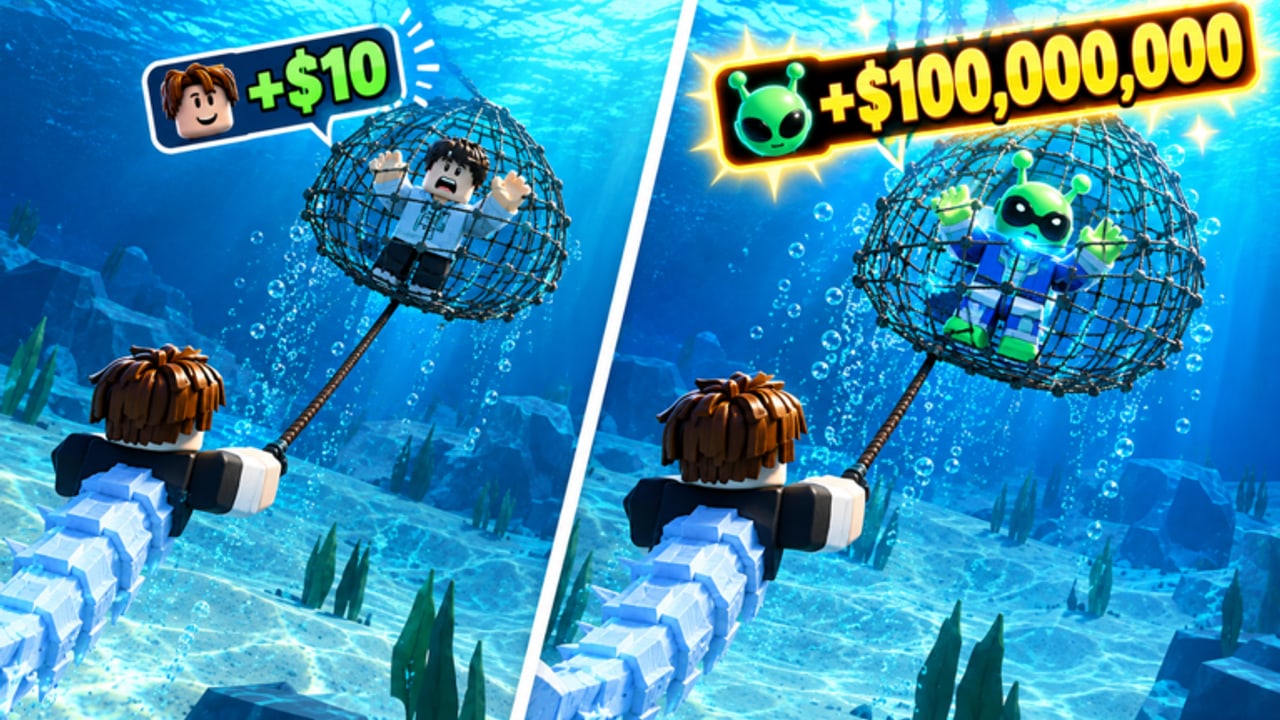
How to read this controls page
Catch a Human uses standard Roblox movement with experience-specific interactions for bait, nets, and world prompts. Lost Universe Studio can move HUD buttons after patches — especially during busy periods like the late-November 2026 update spikes — so treat on-screen labels as the source of truth if this page and your build disagree. The actions below map to the official loop: leave water, place bait, catch humans with your net, avoid guards, return to water.
For technique, continue to Getting Started and How to Catch Humans. Role context sits on the Mechanics Hub.
Universal actions in the catch loop
| Action | What it does | Tips |
|---|---|---|
| Move | Reposition between water, bait tile, and escape route | Pre-aim the return path before you net |
| Jump / climb (if enabled) | Clear low props or terrain lips | Do not invent parkour during a carry unless practiced |
| Camera | Scout lifeguards and police facing | Peek from water before committing inland |
| Interact / Prompt | Place bait, pick tools, confirm UI | Watch for proximity prompts near lure spots |
| Net / Catch | Convert a lured human into a carried catch | Center first; avoid panic spam |
| HUD menus | Shop, inventory, codes/gifts when available | Codes UI notes on How to Redeem Codes |
PC defaults (typical Roblox)
- WASD — movement
- Space — jump
- Mouse — camera look; click proximity prompts and HUD buttons
- E or on-screen prompt key — common interact default in many experiences (confirm in your keybind/settings if remapped)
- Left click / designated catch control — use whatever the experience shows for net swing when in range
- Esc / Roblox menu — leave server, adjust volume, shift lock (Shift Lock can help precise shoreline alignment)
PC players usually have the easiest bait placement precision. Use that advantage to put lures on traffic edges instead of decorative voids.
Mobile
- Dynamic thumbstick — move
- Jump button — jump
- Camera drag — scout guards before leaving water
- Tap proximity prompts — place bait / confirm interactions
- On-screen catch button — appears when the net action is available; keep thumbs free so you are not stuck in the emote wheel
Mobile tip: landscape mode often makes lifeguard scouting easier. After placing bait, reposition so your fingers do not cover the catch button when a human commits.
Console-style play
Roblox on console uses controller sticks for move/camera and face buttons for jump/interact depending on platform defaults.
- Move with the left stick; look with the right stick
- Use the highlighted interact button when prompts appear for bait
- Trigger the on-screen catch action when the human is in range — do not spin the camera wildly mid-swing
- For long code strings, redeem on PC/mobile if possible; console keyboards are slow and error-prone
Settings that quietly improve catches
- Camera sensitivity: high enough to check behind you while carrying, low enough not to over-flick on net alignment
- Graphics tradeoff: if guards stutter on a low-end device, lower graphics so patrol motion stays readable
- Shift Lock (PC): can stabilize strafing along the waterline
- Volume: hear chase audio cues if the experience telegraphs them; do not rely on sound alone
Common control mistakes
- Camera locked on the human while a lifeguard enters from the side
- Holding forward through the entire net animation into a police path
- Mis-tapping mobile jump instead of catch
- Opening shop menus mid-carry
- Forgetting which key/prompt places bait versus which swings the net after a HUD patch
If a patch rearranges buttons, spend one private minute in a safe water edge pressing prompts with no bait spent. Then return to public loops.
Practice drill (5 minutes)
- From water, only practice camera scouting of guards — no bait.
- Place one bait; deliberately walk to your catch angle without sprinting.
- Net one common; focus on thumb/finger calmness.
- Return via the pre-chosen path.
- Repeat until the inputs feel boring.
Boring inputs plus good routes beat flashy inputs plus wipes. When you are ready for pressure training, add the abort rules in Stealth and Guards.
Related pages
Frequently Asked Questions
Quick answers for Catch a Human players.
What keys do I use on PC?
Use standard Roblox WASD movement, mouse camera, and the on-screen or proximity prompts for bait and net actions. Confirm any remaps in settings.
How do I place bait on mobile?
Move to the spot, tap the proximity/HUD prompt for bait, then reposition so your catch button stays reachable.
Why did my buttons move after an update?
HUD layouts can change with patches. Re-check prompts at the water edge before spending premium bait.
Can I play Catch a Human on console?
Yes via Roblox controller support. Use sticks to move/look and on-screen prompts for bait and catch; redeem long codes on PC/mobile if possible.
Where do I learn when to press catch?
Controls only cover inputs. Timing advice is in How to Catch Humans and Getting Started.